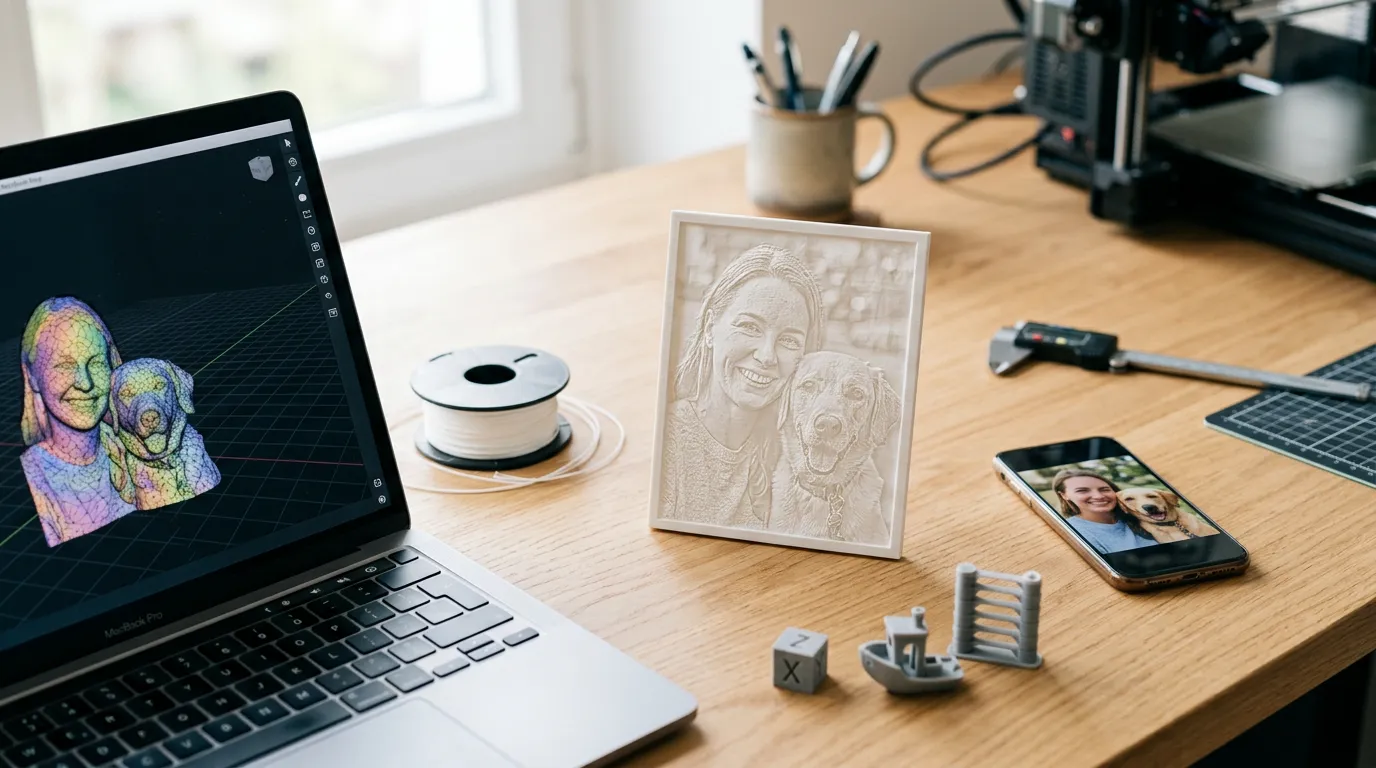
Image-to-STL — Free Online Converter
Convert Image to STL Online —
Free 3D Model Generator
Transform your JPG, PNG, and SVG images into 3D-printable STL files — entirely in your browser. No uploads, no software downloads, no fees. Get instant real-time 3D preview powered by Three.js and download your model as STL, OBJ, or GLB in seconds.
01 — The converter
Turn any image into a print-ready 3D model
02 — At a glance
Built for speed, privacy & scale
03 — How it works
Four steps to a finished model
Upload Your Image
Drag and drop a JPG, PNG, or SVG file — or try one of our built-in samples. All major image formats are supported. Your file stays on your device.
Choose Mode & Adjust
Select Heightmap for photo reliefs, SVG Extrude for logos, or Lithophane for backlit panels. Fine-tune height, smoothness, base thickness, and resolution with live sliders.
Preview in Real-Time 3D
Rotate, zoom, and inspect your model interactively with Three.js. Toggle between solid and wireframe views. Every parameter change updates the preview instantly.
Download & Print
Export as STL for direct slicing in Cura, PrusaSlicer, or Bambu Studio. Also available in OBJ (with color) and GLB (for web/AR). Start printing immediately.
04 — Why this tool
Why This Image to STL Converter
Every feature is designed around one principle: your data stays on your device, and the result is print-ready in seconds.
Private by Design
Every conversion runs in your browser using JavaScript and Canvas APIs. No file ever leaves your device. No server-side processing. No data collection.
Real-Time 3D Preview
Powered by Three.js with WebGL hardware acceleration. Rotate, pan, and zoom your model before downloading. Switch between solid and wireframe views to inspect mesh quality.
Three Conversion Modes
Heightmap converts pixel brightness to physical height — ideal for portraits and reliefs. SVG Extrusion extracts vector paths into crisp 3D solids. Lithophane mode creates translucent backlit panels.
Three Export Formats
Download as binary STL — the universal 3D printing format. Or choose OBJ for color support in Blender. GLB (glTF binary) for modern web, AR, and VR applications.
No Limits, No Waiting
Everything runs locally — no queue, no cooldown, no daily cap. Convert as many images as you want. File size limited only by your device memory. No account needed.
SVG & Vector Support
A unique feature competitors do not offer. Upload SVG logos, icons, and vector art — our parser extracts real bezier paths and extrudes them into solid, watertight 3D meshes. Perfect for signage and badges.
05 — Formats
Supported File Formats
Upload images in any common format and export your 3D model in the format that fits your workflow.
Input — Image Formats
Output — 3D Formats
06 — Creations
What You Can Create
From wall art to custom tools, here is what makers create with this image to STL converter.
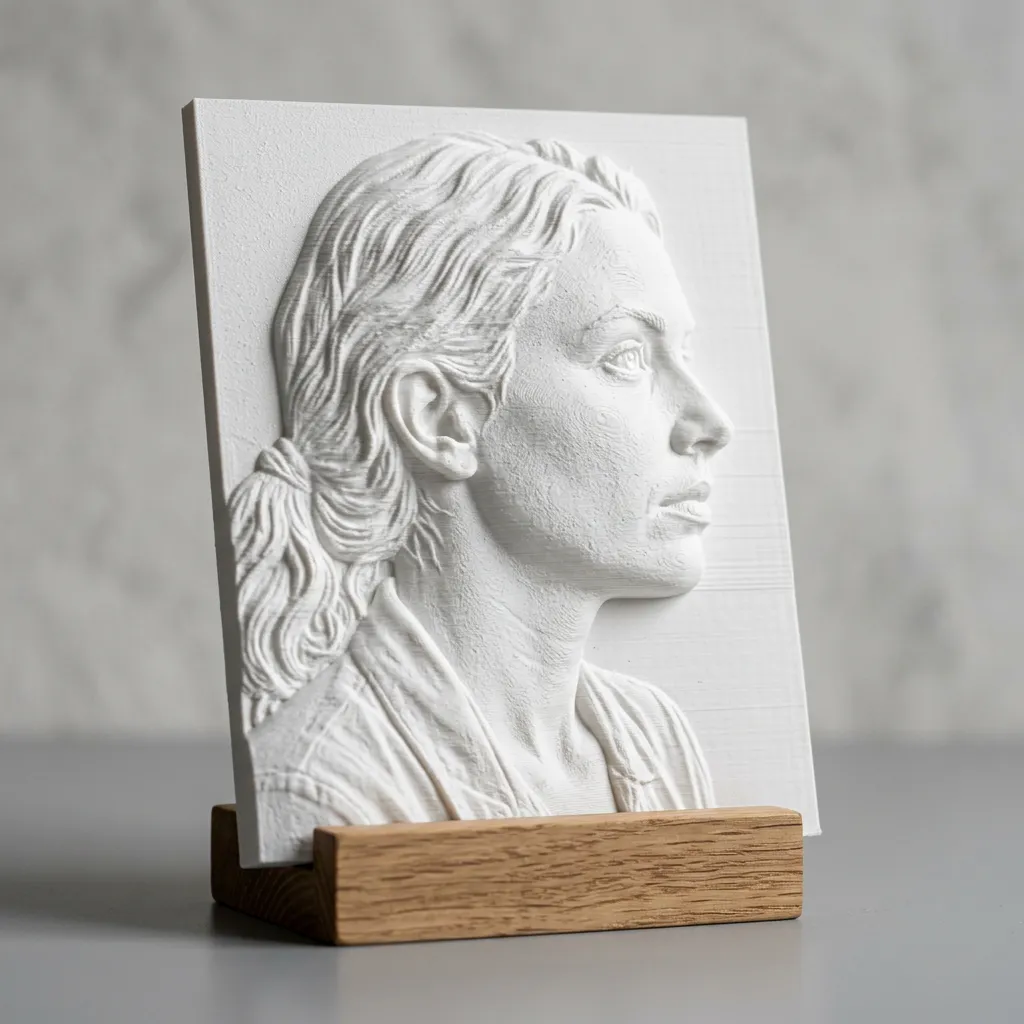
3D Photo Reliefs
Turn any portrait, landscape, or artwork into an embossed 3D panel. The heightmap mode maps pixel brightness to physical depth, creating detailed reliefs perfect for wall art, coasters, and decorative tiles.
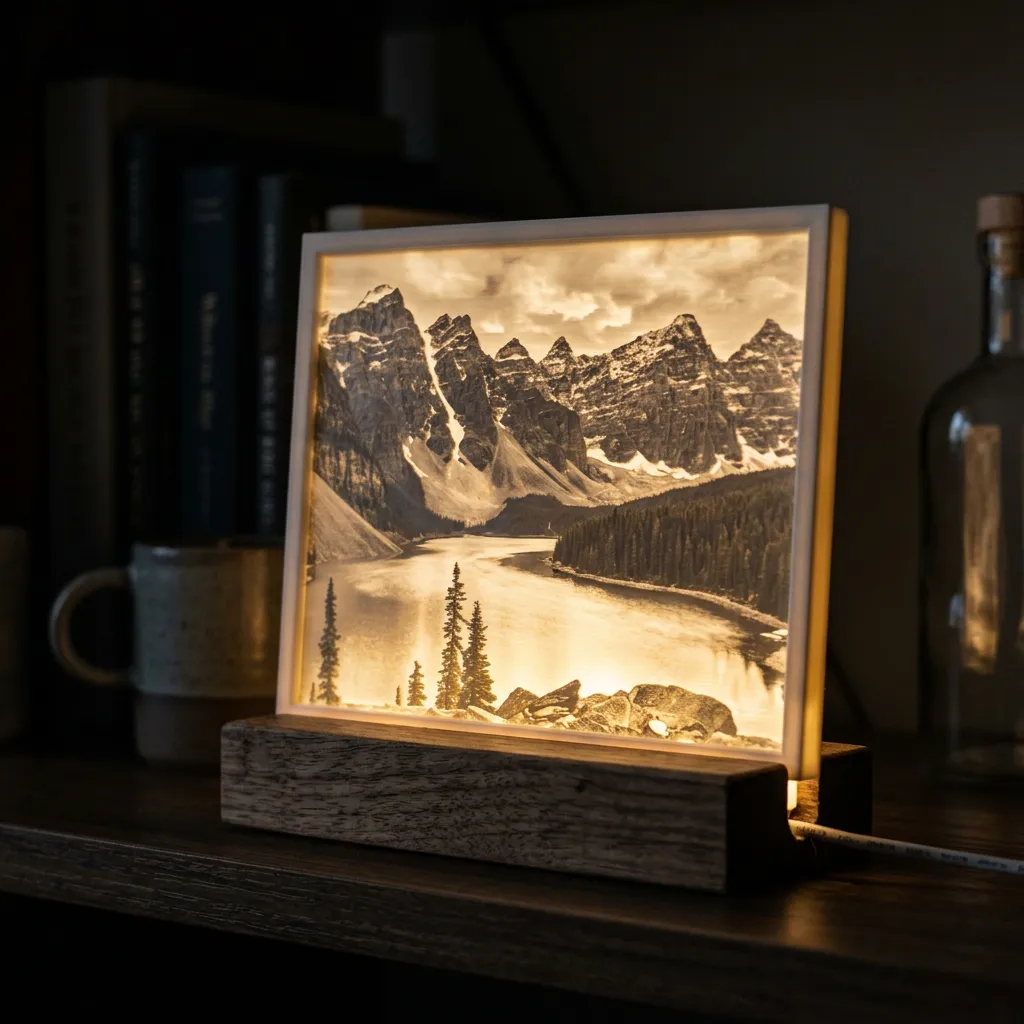
Lithophanes
Convert your photos into thin translucent panels. When backlit, the varying thickness reveals your image in stunning detail. Makes incredible personalized lamps, night lights, and window displays.
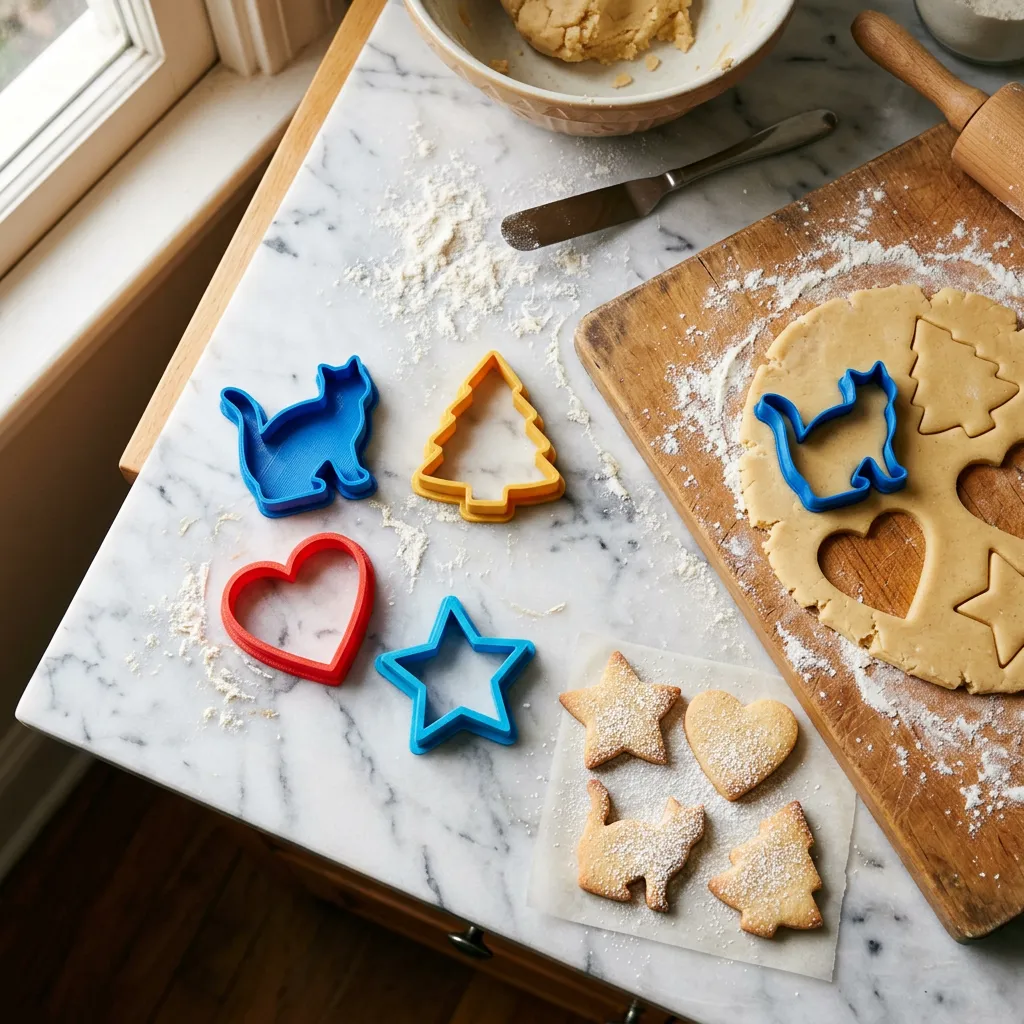
Cookie Cutters
Upload a silhouette or simple shape and get a custom cookie cutter STL. Perfect for themed parties, holidays, and personalized gifts.
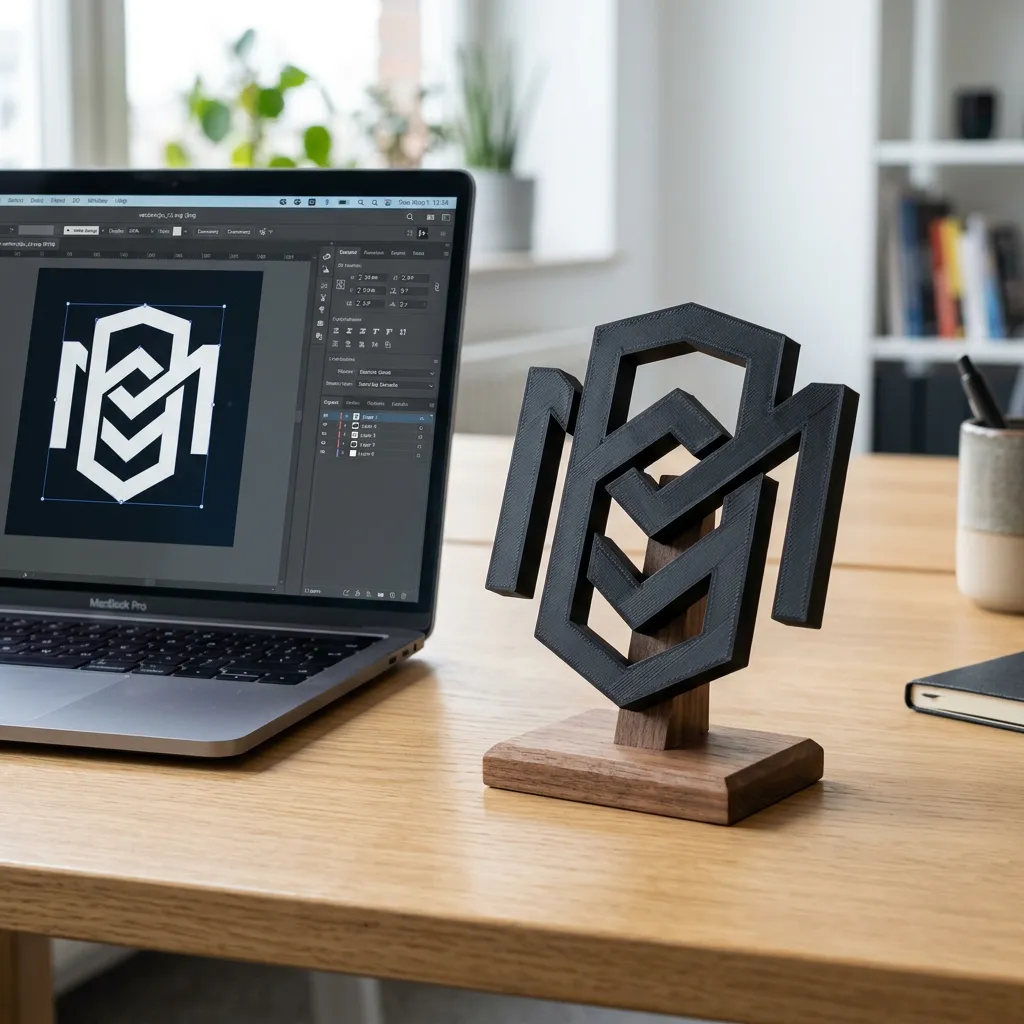
Logo & Icon Extrusions
Upload your SVG logo and extrude it into a solid 3D object. Ideal for custom signage, desk ornaments, keychains, and brand merchandise.
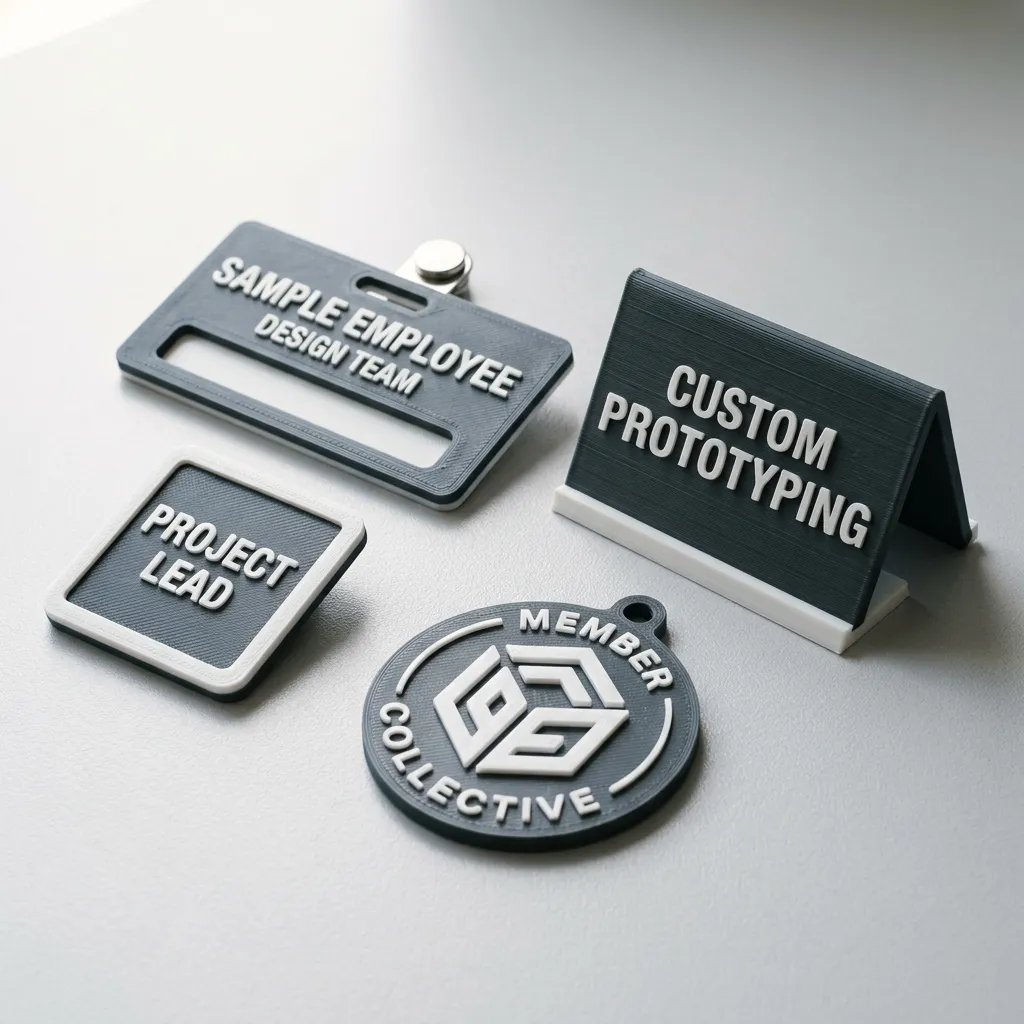
Custom Badges & Signs
Create raised lettering, embossed text, and dimensional signage. Use the text-to-3D tool for quick typography or upload complex SVG designs.
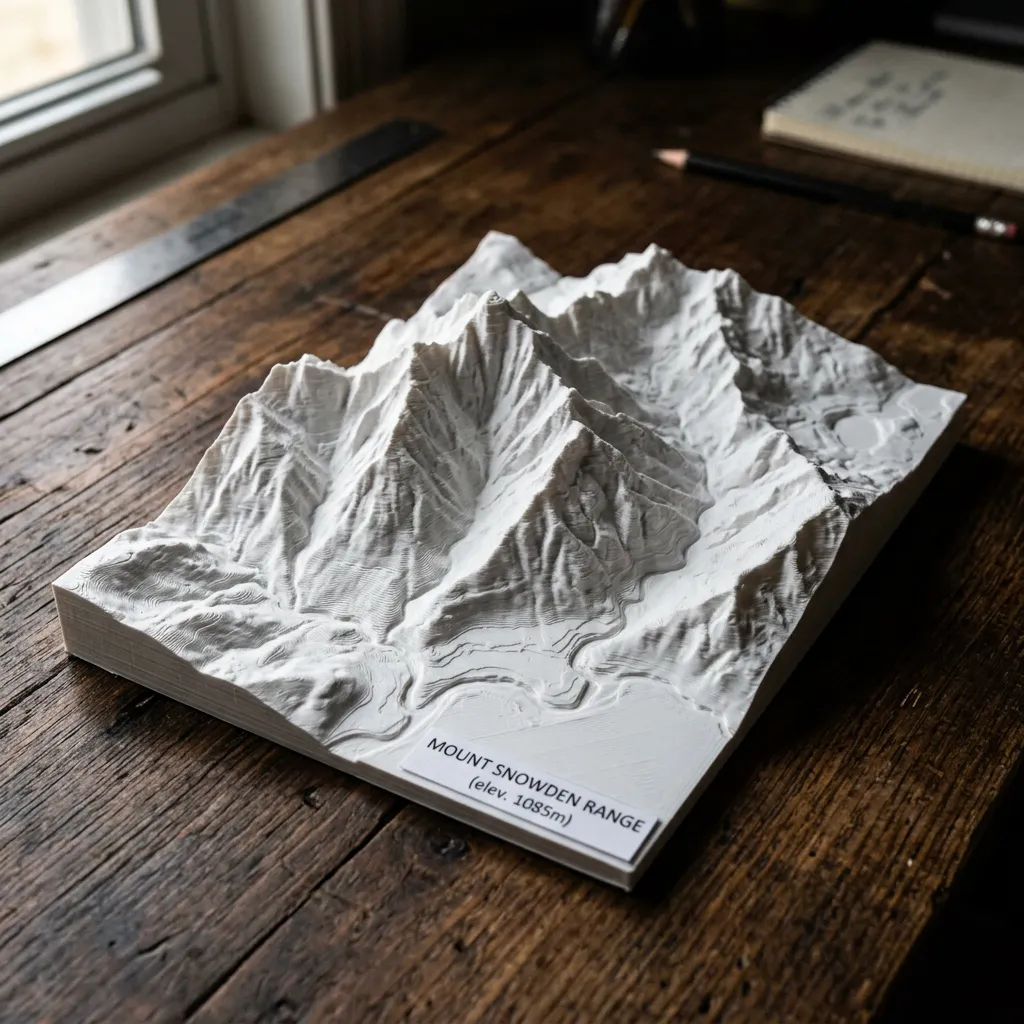
Topographic & Terrain Maps
Convert grayscale height maps, elevation data, or satellite imagery into 3D terrain models. Adjust the height scale for dramatic mountain ranges or subtle landscape contours.
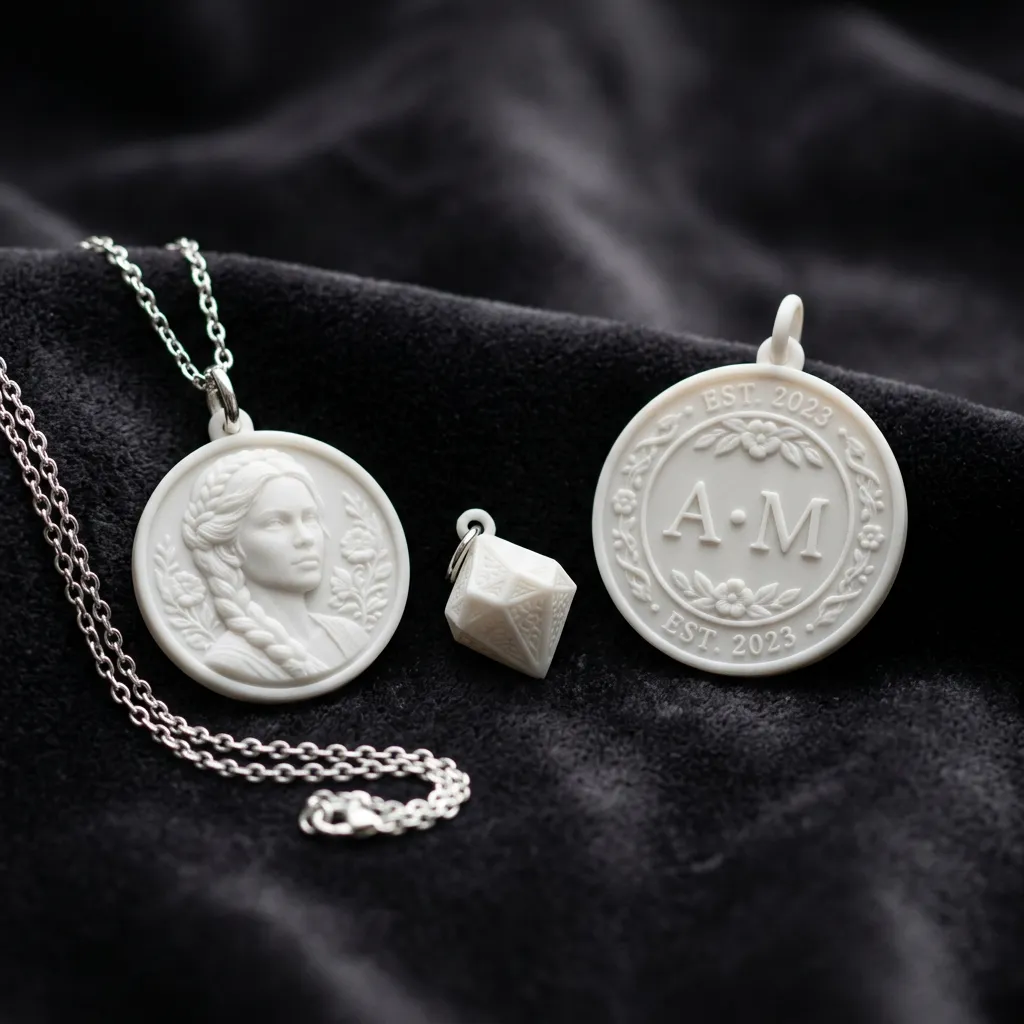
Custom Jewelry & Pendants
Create personalized pendants, charms, and medallions from photos and designs. Convert a meaningful symbol, initials, or a small photo into wearable 3D printed jewelry. Use resin printing for finer detail on small pieces.
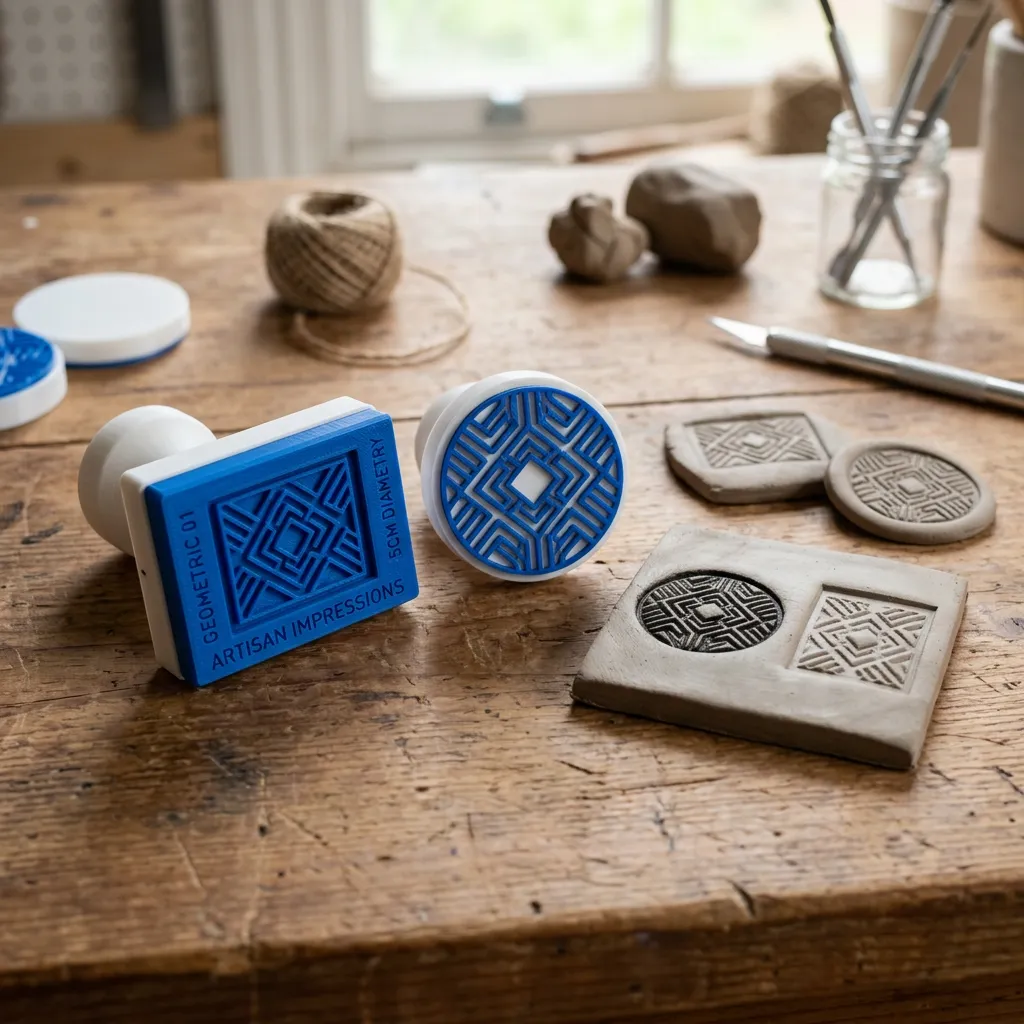
Stamps & Embossing Tools
Design custom stamps for clay, fondant, soap, leather, and paper crafts. Use the invert toggle to create the negative impression, then print with flexible filament or hard PLA depending on your material.
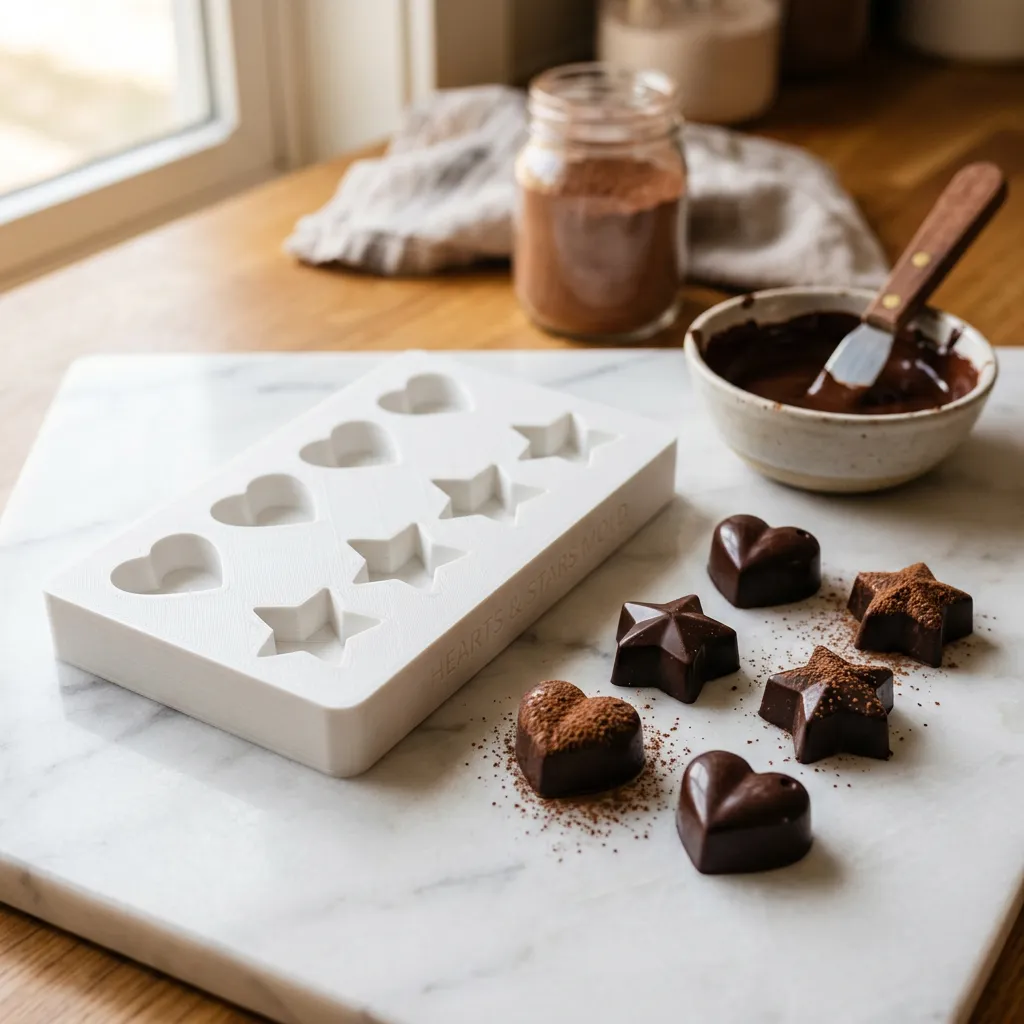
Molds for Casting & Chocolates
Create food-safe molds for chocolates, candies, ice cubes, and resin casting. Convert your design to a negative relief, print the mold, and cast your creations. Use food-safe filament if making edible items.
07 — Comparison
How We Compare
Not all image-to-STL converters work the same way. Here is how our browser-based approach compares.
| Feature | This Tool | Server-Based | Desktop Software |
|---|---|---|---|
| Privacy | 100% local — no uploads | Files sent to servers | Files stay local |
| Speed | Instant preview | Queue (1-5 min) | Hardware dependent |
| 3D Preview | Real-time rotate | Rarely available | Native support |
| Cost | Free forever | Limited free tier | Free options exist |
| File Limits | No limits | Daily caps | No limits |
| Registration | Not required | Often required | Not required |
| SVG Support | Native extrusion | Raster only | Plugins needed |
| Modes | 3 modes | Usually 1 mode | Complex setup |
| Setup | Zero — open browser | Open browser | Install + learn |
08 — More tools
More Free 3D Tools
JPG to STL
Convert JPG photos to 3D printable models with heightmap mode.
PNG to STL
PNG images with transparency for clean reliefs and extrusions.
SVG to STL
Extrude vector paths into watertight 3D solids for printing.
Photo to 3D
Turn any photo into a 3D model with advanced depth mapping.
Text to STL
Type any text and extrude it into a 3D printable model instantly.
Cookie Cutter Maker
Turn silhouettes into custom cookie cutter STL files in seconds.
Lithophane Maker
Create stunning backlit 3D prints from your photos.
Heightmap Editor
Fine-tune contrast, brightness, and threshold for precise reliefs.
09 — Pro tips
Tips for the Best STL Conversion
Use High-Contrast Images
Images with clear light/dark separation produce the best reliefs. Avoid flat, low-contrast photos — they result in shallow, indistinct 3D surfaces.
Choose the Right Mode
Use Heightmap for photographs and realistic reliefs. Use SVG Extrusion for logos, icons, and vector art. Use Lithophane only when you plan to backlight the print.
Adjust Smoothness Carefully
Too much smoothing loses detail; too little creates a noisy mesh. Preview the wireframe to check mesh quality before downloading.
Scale for Your Printer
Set base dimensions to match your printer bed size. Larger models show more detail but take longer to slice and print.
Check Mesh in Wireframe View
Toggle wireframe mode in the 3D preview to inspect triangle density and detect any artifacts before exporting.
Export the Right Format
Use STL for direct 3D printing. Use OBJ for editing in Blender. Use GLB for sharing online or embedding in web-based viewers.
Use Grayscale Images for Precise Control
For maximum control over the height map, convert your image to grayscale first. Each shade of gray maps to a specific height, giving you predictable results. Dark gray = low areas, light gray = high areas.
Remove Backgrounds Before Uploading
A clean subject isolated from the background produces the best 3D relief. Remove backgrounds in any image editor, or use a PNG with transparency. The transparent areas automatically map to zero height.
Test with Sample Images First
The tool includes built-in sample images. Use them to understand how each parameter affects the output before uploading your own photos. This saves time and helps you dial in the right settings.
Use the Invert Toggle for Different Effects
The invert button swaps embossed (raised) and engraved (recessed) modes. Try both on every image. Portraits often look better engraved; text and logos usually work better embossed. Preview both before downloading.
Add a Base Plate for Stability
Enable the base plate option to add a flat bottom surface. This makes relief models stand upright for display, improves bed adhesion during printing, and gives the print a professional finished look.
Resize in Your Slicer, Not the Tool
The tool generates a model at a default scale. Resize it in your slicer (Cura, PrusaSlicer) to fit your printer bed and desired output size. This gives you millimeter-precise control over the final print dimensions.
10 — Specifications
Technical Specifications
Understand the technical capabilities and limitations of the browser-based image to STL converter.
Processing Resolution
Images are processed at 512px on the longest side for performance. This generates STL meshes with up to 250K+ triangles, which provides excellent detail for FDM and resin 3D printing. The limiting factor is typically your slicer's mesh handling, not the conversion quality.
STL Output Quality
All modes produce watertight, manifold binary STL files. No mesh repair is needed before slicing. The output is compatible with Cura, PrusaSlicer, Bambu Studio, OrcaSlicer, Simplify3D, and all standard slicers.
Browser Requirements
Works on Chrome, Firefox, Edge, and Safari (desktop and mobile). Requires WebGL support for the 3D preview. The converter itself uses Canvas API and works on any modern browser. No extensions or plugins needed.
Performance
Conversion is near-instant on modern hardware. The heightmap algorithm processes in milliseconds. SVG path parsing and triangulation may take 1-2 seconds for complex designs. Mesh generation and STL export complete within 1-2 seconds for typical resolutions.
Privacy & Data Handling
Zero data leaves your device. No cookies track your usage. No analytics scripts monitor your conversions. No CDN, no third-party services, no server logs. The entire tool is a static web page served once and runs entirely client-side.
Supported 3D Printers
Compatible with all FDM printers (Creality, Prusa, Bambu Lab, Anycubic, Elegoo) and resin/SLA printers. The STL format is universal. Print size is determined by your printer bed — scale in your slicer to fit any build volume.
11 — Who it's for
Who Should Use This Image to STL Converter
This tool is built for anyone who wants to turn 2D images into 3D prints — from complete beginners to experienced makers.
3D Printing Hobbyists
Got a new 3D printer and want to make something personal? Upload a family photo, a drawing your kid made, or a favorite meme — turn it into a unique 3D print in minutes. No modeling skills required.
Makers & DIY Creators
Create custom cookie cutters from any silhouette. Make personalized signs, stamps, embossing tools, keychains, and decorative items. If you can draw it or photograph it, you can print it.
Designers & Artists
Rapidly prototype relief designs from your digital artwork. Convert logo concepts to physical mockups. Create lithophane art pieces from photography. Test ideas in hours instead of days.
Educators & Students
Create tactile teaching aids from maps, diagrams, and illustrations. Make learning accessible for visually impaired students. Bring geography, biology, and history to life with 3D printed models.
Small Business Owners
Create custom merchandise from your logo. Design unique product packaging molds. Make branded cookie cutters, stamps, and signage. All with zero software cost and no 3D modeling expertise needed.
Cosplay & Prop Makers
Convert reference images and texture maps into 3D models for armor pieces, prop details, and costume accessories. Use the heightmap editor to extract depth from concept art and game textures.
12 — FAQ
Frequently Asked Questions
- What is an STL file and why do I need one?
- STL (STereoLithography) is the universal file format for 3D printing. It represents a 3D surface as a mesh of triangles and is accepted by every 3D printer slicer, including Cura, PrusaSlicer, and Bambu Studio.
- Is this image to STL converter really free?
- Yes, completely free. No registration, no hidden fees, no file count limits, no watermarks. All processing happens in your browser — there is no server to bill, so we keep it free forever.
- What image formats can I convert to STL?
- JPG, PNG, and SVG are fully supported with dedicated conversion modes. BMP, WebP, and other common raster formats also work through heightmap mode. SVG extrusion produces the best results for logos and icons.
- Where does my image go? Is it uploaded anywhere?
- Nowhere. All processing happens entirely in your browser using JavaScript, Canvas, and WebGL APIs. Your images never leave your device. No data is ever uploaded to any server.
- What 3D file formats can I export to?
- You can export to STL (universal 3D printing), OBJ (Wavefront with color support for Blender), and GLB (modern glTF binary, ideal for web, AR, and VR). All formats generated in your browser.
- Can I use the generated STL for actual 3D printing?
- Absolutely. The output is standard binary STL, ready for direct slicing in Cura, PrusaSlicer, Bambu Studio, or any other 3D printing software. No post-processing needed for most models.
- How is this different from server-based online converters?
- Server-based converters upload your files to remote servers — privacy risk, size limits, wait times, daily caps. Our tool runs 100% in your browser — instant 3D preview, real-time adjustments, unlimited conversions, complete privacy.
- What conversion modes are available?
- Three modes: Heightmap converts pixel brightness to 3D height for photo reliefs. SVG Extrusion extracts vector paths into solid 3D shapes for logos and text. Lithophane creates translucent panels that reveal an image when backlit.
- Does this work on mobile devices?
- Yes, fully responsive. Upload photos from your phone, preview the 3D model with touch controls, and download STL files. Performance depends on device GPU.
- Do I need 3D modeling experience?
- Not at all. This tool is designed for beginners. Upload an image, adjust a few sliders, download your STL. If you can take a photo, you can make a 3D model.
- Is the STL output watertight and printable?
- Yes. All three modes (heightmap, SVG extrusion, lithophane) produce manifold (watertight) meshes. The output passes standard mesh validation checks. You can slice and print immediately without mesh repair.
- What happens if I upload a very large image?
- Images are automatically resized to 512px on the longest side before processing. This keeps conversion fast while maintaining more than enough detail for 3D printing. Original files up to 50MB are handled without issues since processing is local.
- Can I use the generated STL files for commercial purposes?
- Yes. You own all STL files you generate. Use them for personal projects, sell them on Etsy or 3D model marketplaces, include them in commercial products, or share them freely. We claim no rights over your output.
- Why do some images produce better 3D results than others?
- The quality of the 3D relief depends heavily on the image's contrast and detail. Images with dramatic lighting, clear edges, and good tonal range produce the best results. Flat, low-contrast, or blurry images result in shallow, indistinct 3D surfaces. For best results, adjust your image's contrast in a photo editor before uploading.
- How does SVG extrusion handle complex designs?
- The SVG parser handles paths, polygons, rectangles, circles, ellipses, and compound shapes. Nested shapes create holes automatically. Complex designs with many elements may take slightly longer to triangulate but produce accurate results. If a design is too complex for extrusion, the tool auto-falls back to raster heightmap mode.
- What is the difference between Heightmap and Lithophane modes?
- Heightmap mode creates a one-sided relief where brightness maps to height — ideal for viewing from the front. Lithophane mode creates a thin panel where thickness controls light transmission — designed to be backlit for viewing. Use heightmap for wall art and reliefs; use lithophane for lamps and light boxes.
- Does the tool work offline?
- Once the page loads, the core conversion functionality works without an internet connection. The initial page load requires internet, but all image processing, 3D preview, and STL generation run entirely client-side with no network requests. You can convert images even if your connection drops after page load.
- How does the smoothness slider affect the STL output?
- Smoothness controls how much the mesh is simplified. Low smoothness preserves every pixel detail but creates larger STL files with more triangles. High smoothness produces simpler, smaller files but may lose fine texture. For detailed portraits, use low smoothness. For geometric shapes and logos, use higher smoothness for cleaner edges.
- Can I batch convert multiple images at once?
- The tool processes one image at a time. However, since all processing is local, you can convert images back-to-back with zero waiting. Many users keep the tool open and process a batch of photos sequentially. There is no queue, no daily limit, and no throttling.
- Which 3D printing filament works best for photo reliefs?
- For photo reliefs and decorative prints: PLA in any color works well. Matte PLA hides layer lines better. Silk/shiny PLA can make details harder to see. For lithophanes: white PLA or natural PLA is essential for proper light transmission. Avoid dark, transparent, or glitter filaments for lithophanes as they block or scatter light.
Start now
Ready to Turn Your Images into 3D Models?
Upload any image above and start converting. No registration, no software, no waiting. Get a print-ready STL file in under a minute — all from your browser.